

Sales Manager Course
Course Aim
This 2-Day Sales Management Training workshop is designed to provide you with the skills and behaviours you need to become an inspiring and motivating sales leader. This course is grounded in practical strategies and real-world scenarios that will allow you to motivate your team, establish challenging goals, and develop the skills of each individual member of your team through effective sales coaching and performance improvement.
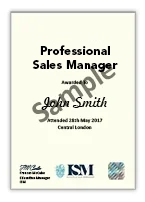
Upon completion of the workshop, you will receive a “Professional Sales Manager” certificate from the prestigious Institute of Sales Management. The course is also CPD Certified, providing you with an opportunity to receive a CPD Certificate at no additional cost.
Whether you’re a seasoned professional or a new sales manager, our Sales Management Course is an excellent investment in your success. Take the first step towards becoming a top-performing sales manager and leading your team to success.
You can attend this course along with others from different businesses or if there are a number of you, we can run this course as an in-house version and tweak anything that you need.

Course Objectives
- Learn how to earn the trust and respect of your team
- Learn how to increase your team’s productivity through learning effective sales training and coaching skills
- Learn the duties and the role of a successful sales manager
- Learn how to set targets and objectives with your people
- Learn how to set up and run effective sales meetings
- Learn how to motivate different personality types
- Learn how to foster a team spirit of high performance
- Learn how to coach your sales team
- Learn how to settle disputes and disagreements in your team
- Learn effective management skills
- Learn how to put together a sales plan that guarantees success
Target Audience & Who Will Benefit
- Sales Managers
- Sales Leaders
- Sales Directors
- Head Of Sales



Course Overview
Day 1
Introduction & Objectives
What Makes An Effective Sales Manager?
- Learn the difference between sales management and sales leadership.
- Understand the key responsibilities of a sales manager.
- Learn what makes an outstanding sales manager and what you should and should not be doing.
Exploring Your Sales Managerial Style & Potential
- Take a managerial assessment to determine your preferred sales management style and its implications for your sales team.
Communication & Influencing Skills
- Learn how to communicate in a clear, concise, and positive manner with your sales team.
- Understand the importance of non-verbal communication and how to influence others to see your point of view effectively.
Sales Coaching & Feedback Skills
- Learn how to sales coach and give feedback to your sales teams.
- Understand different models of sales coaching and how to give positive and constructive feedback to fit the situation, such as formal coaching sessions, on-the-job sales coaching, and reviews.
Day 2
Recap & The Day Ahead
Managing Sales Performance
- Learn how to set sales goals, objectives, and development plans for your staff.
- Understand how to review sales performance and manage under-performers.
- Learn how to deal with difficult people in an effective manner.
- Learn how to keep high sales achievers motivated.
How To Run Highly Effective Sales Meetings
- Learn how to structure your sales meetings for maximum productivity and focus.
- Understand how to analyse figures and brainstorm new approaches.
Building High Performance Sales Teams
- Learn how to gel all the members in your sales team to work together and exceed targets.
Motivation Skills & Understanding Others
- Learn how to elicit your sales team’s motivations, values, and beliefs.
- Understand how to tailor your communications to motivate them to do an outstanding job in all that they do.
Testimonials & Reviews From Previous Attendees

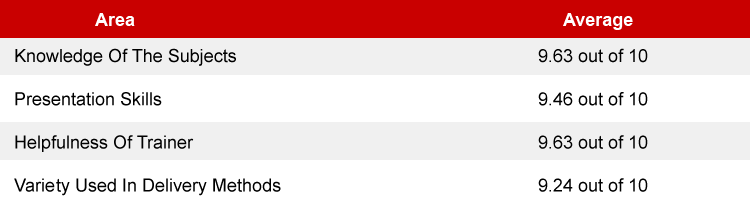
Feedback From The Last 72 Sales Professionals Who Attended This Course
This was a great course for me. It has now given me a clear understanding of how to act as a sales manager and what is expected. I have taken a lot of things away from this and look forward to putting them into practise in my new role. One of the most useful parts was on how to create a sales action plan and strategy.

It was a great day, very informative and I feel I have learned a lot of different ways to approach this new venture of becoming a new manager. The whole course was well planned out, presented excellently and was very engaging.

This was just what I was looking for, I want to take my skills, people management and self-awareness to the next level, the course was very enjoyable, and the topics were all relevant for my new role progressing into Sales Management. The trainer was great and really kept the flow of the course going, clearly knows what he’s talking about and helped to inspire me throughout.

Experienced Sales Trainers
Our trainers have had years of experience both as salespeople and as trainers.
Meet a few of them to give you a feel of what they’re all about.

Sales Trainer and Consultant
Helen has over 20 years experience. She has worked with clients like the NHS, Age UK, and Thorntons. Her engaging style, fuelled by a CIPD Certificate in L&D, makes her ideal for transformative sales training.

Sales Trainer and Consultant
Anne-Louise, with her ILM Level 7 in Business Coaching & Mentoring, has enhanced the sales capabilities of Tesco, Morrisons, and Ernst & Young over 20 years in the field. Her strategic training empowers sales professionals.

Sales Trainer and Consultant
Jose is a global sales trainer with a CIM Diploma in Marketing and has boosted businesses from the NHS to TEDx events. His certified coaching techniques offer a worldwide perspective for achieving sales success.
Training Locations
Central London

60 Pentonville Road
Angel Kings Cross, London
N1 9LA
Manchester Airport

Ringway Rd, Airport
Manchester
M90 3NS
Heathrow

Eastern Perimeter Road
Hatton Cross, London
TW6 2SQ
Bristol

Filton Road
Hambrook, Bristol
BS16 1QX
Coventry

Paradise Way
Walsgrave on Sowe
CV2 2ST
In-House Course

We Can Deliver This
Course At Your Location
For Your Managers

Pricing
The course fees are £495 + vat.
ISM & CPD Certified
This Sales Manager Training Course is a formally endorsed qualification by the ISM and is also CPD Certified. Upon attending the course, you will receive the “Professional Sales Manager” certificate from the ISM and a CPD certificate.
Start & Finish Times
Start: 9.30am
Finish: 4.30 – 5.00pm
Included Within The Registration Fee:
- Course manual
- Course materials
- Buffet lunch
- Servings of tea and coffee throughout the day
- ISM “Professional Sales Manager” certificate and CPD certificate
- 3 months access to 1000+ courses via our Skillshub platform
- Unlimited email and telephone support from your trainer after the course
Click BOOK NOW to secure your place. It only takes a moment, with payment by card, invoice or bank transfer. Once you’re booked, we’ll send a confirmation email. Simple, flexible and hassle-free.

Course Methods & On-Going Support
We believe that training should be practical and fun. That’s why this course is delivered in an engaging way with lots of participation. All delegates receive a pre-course questionnaire to complete so we can gauge the experience and roles of those attending so we can cater for your specific needs and requirements.
After we have delivered this course, we do not just shake hands and take your money. We like to offer you some ongoing support.
Included within the cost are the following unique support options that are available to you.

Sales Management Training FAQs
What is sales management?
Why is sales management important?
What are the qualities of a top sales manager?
Are your sales manager courses certified?
Related Courses
Our most popular venues are London, Manchester, and Coventry.
Want to know more?
Please speak to one of our team or click on
make an enquiry to submit your requirements
